Cursor Review: I Tried the Most Hyped AI Code Editor as a Non-Developer
I’d never heard of Cursor before this week. I was researching AI coding tools to review and it kept coming up: $2.3 billion in funding, over $2 billion in annual revenue, and now in talks for a $50 billion valuation. So I installed it cold, with zero expectations, to see if it lives up to the hype.
Here’s what I found.
What Is Cursor?
Cursor is a code editor (a program where you write and manage code) with AI built directly into it. Think of it like a smart word processor, but instead of writing essays, you’re building websites and apps.
It’s built on top of VS Code, which is one of the most popular code editors in the world. But where VS Code is a blank canvas, Cursor comes with an AI assistant baked in. You type what you want in plain English, and it writes the code for you. It’s developed by Anysphere, a San Francisco startup founded in 2022, and is now trusted by over half the Fortune 500.
Installing It
Getting Cursor on a Mac took under a minute. You download a file from cursor.com, open it, and drag the app to your Applications folder. No complicated setup, no extra tools to install. If you’ve ever installed an app on a Mac, you can install Cursor.
When I clicked “Sign Up,” it opened a webpage in my browser to create the account rather than handling it inside the app. I signed up with Google, and it asked if I wanted to connect things like GitHub and Slack, services developers use that you probably don’t need. I skipped all of that.
After signing up on the website, I needed to click “Login” inside the app and authorize the connection. It only took a moment, but it’s worth knowing that the sign-up happens in your browser and then you connect it back to the app. Once that was done, I saw two options: New Project and Open Project. Simple enough.
Building a Craft Beer Bar Website
I created a new project and was dropped into Cursor’s main layout: a chat panel on one side and a file explorer on the other. The chat is where the magic happens.
I typed one sentence:
“Build me a landing page for a craft beer bar with menu and contact section.”
Cursor didn’t ask any questions. It just started coding. I could see the code being written in real time on the right side of the screen, line by line. In about 30 to 60 seconds, it was done.
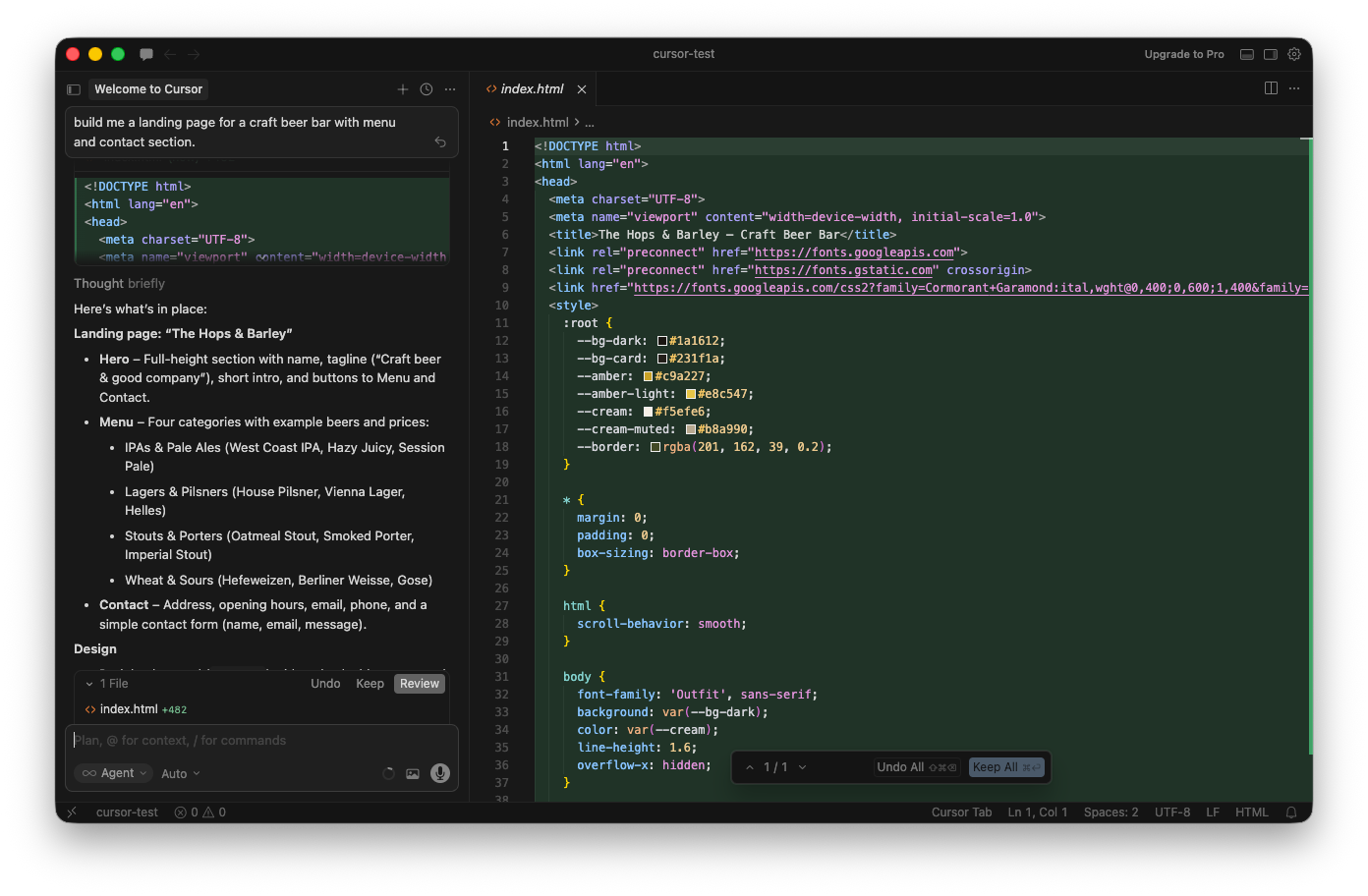
What it built blew me away:
- A full landing page for a bar called “The Hops & Barley”
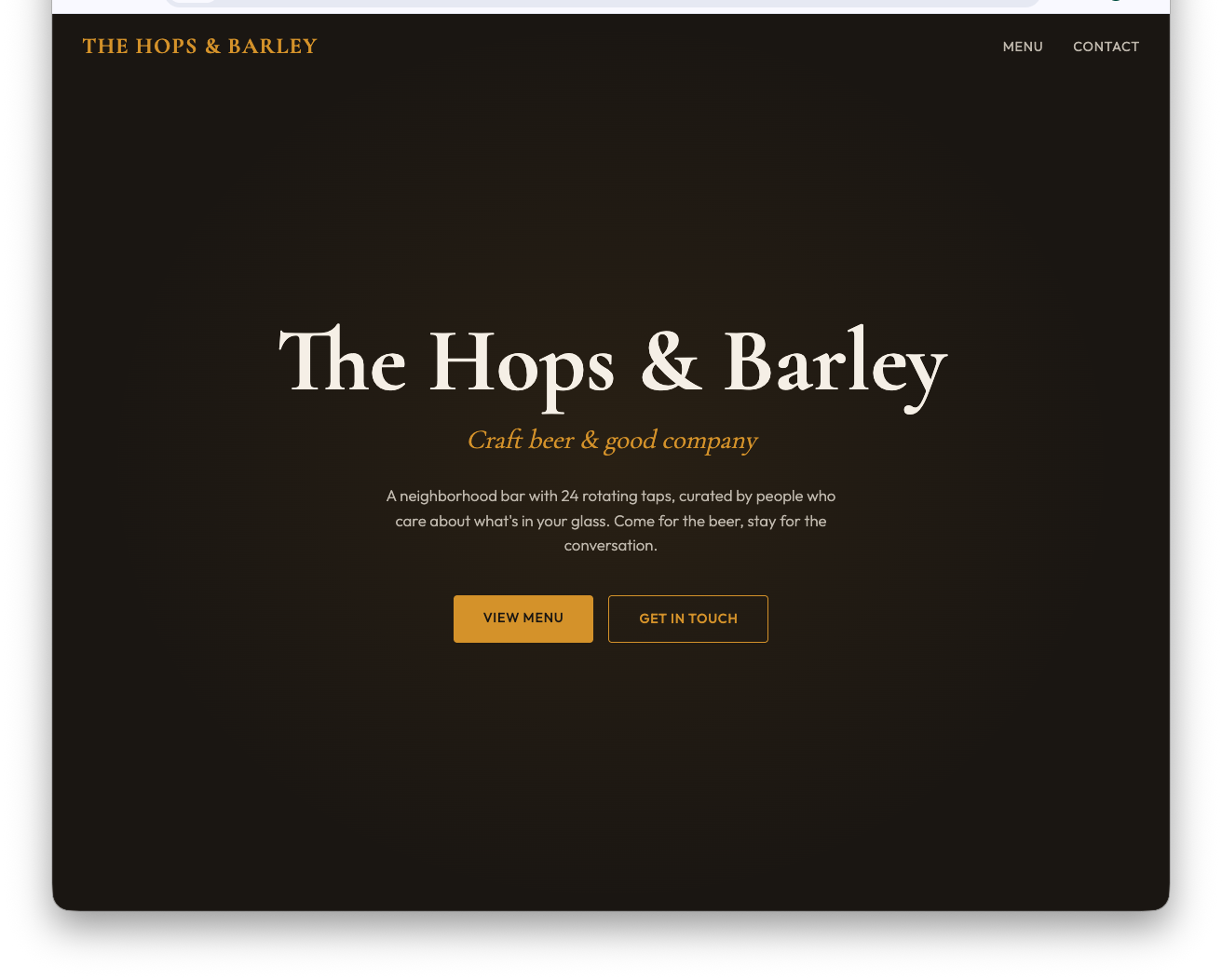
- A hero section (the big banner area at the top) with the bar’s name, a tagline, and buttons
- A beer menu with four categories (IPAs, lagers, stouts, and sours), each with names and prices
- A contact section with an address, hours, email, phone number, and a contact form
- A dark color scheme with amber and gold accents that actually looked like a real bar website
- A sticky navigation bar (it stays at the top as you scroll) with smooth scrolling between sections
One plain English sentence. That’s all it took.
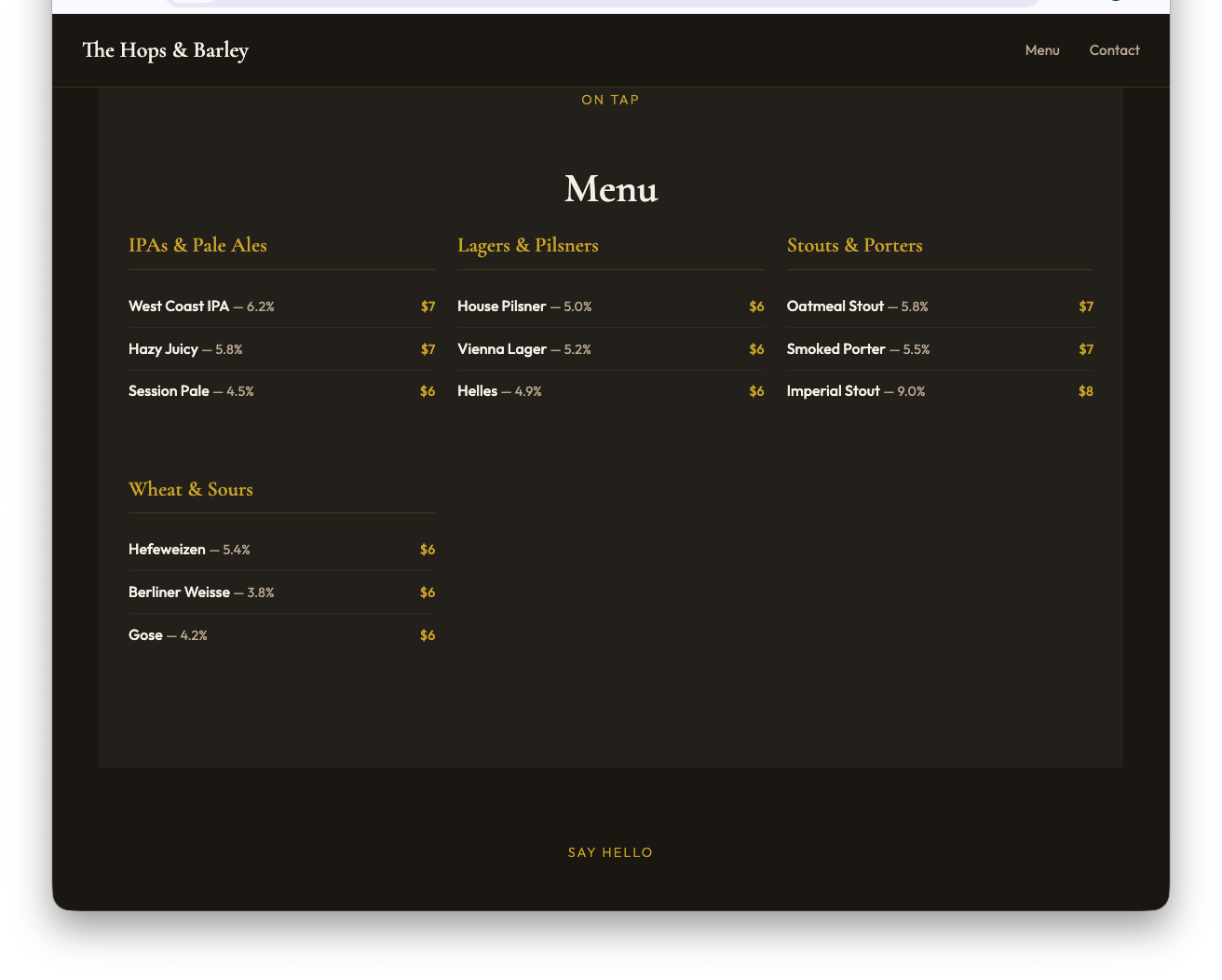
After it finished, Cursor explained everything it had built and offered to make changes: different colors, more menu items, whatever I wanted. It felt like working with a designer who’s waiting for feedback.
Making Changes in Plain English
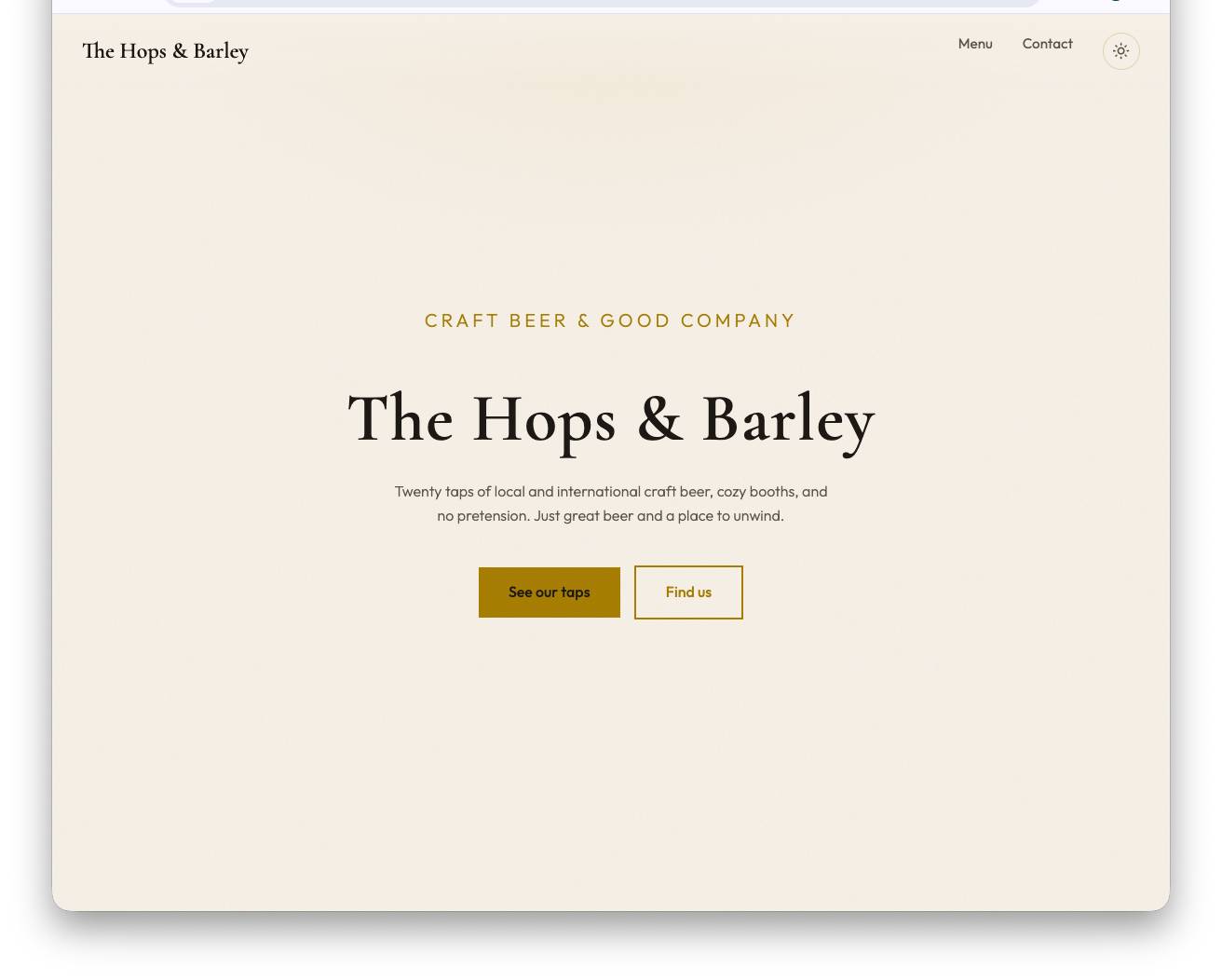
I asked it to add a dark mode toggle, a button that lets visitors switch between a dark and light version of the site. It took about a minute to add it, and the result included details I didn’t ask for:
- A sun/moon icon button in the navigation bar
- A full light theme with adjusted colors
- The site remembers your preference even if you close and reopen it
- The button is accessible for screen readers
I didn’t ask for any of that extra stuff. It just built it the right way on its own.
The Inline Editor
Cursor has another way to make changes besides the chat, called the inline editor. Instead of describing what you want in the chat panel, you highlight a specific section of code in the editor and a small text box called “Quick Edit” appears right below it. You type what you want to change, and it edits just that section, nothing else.
Think of it like highlighting a paragraph in a document and telling someone “rewrite just this part.” The rest of the page stays untouched.
I used it to separate the IPAs and Pale Ales into their own categories in the menu. I watched it edit the code in real time, right where I was looking. It felt precise and fast.
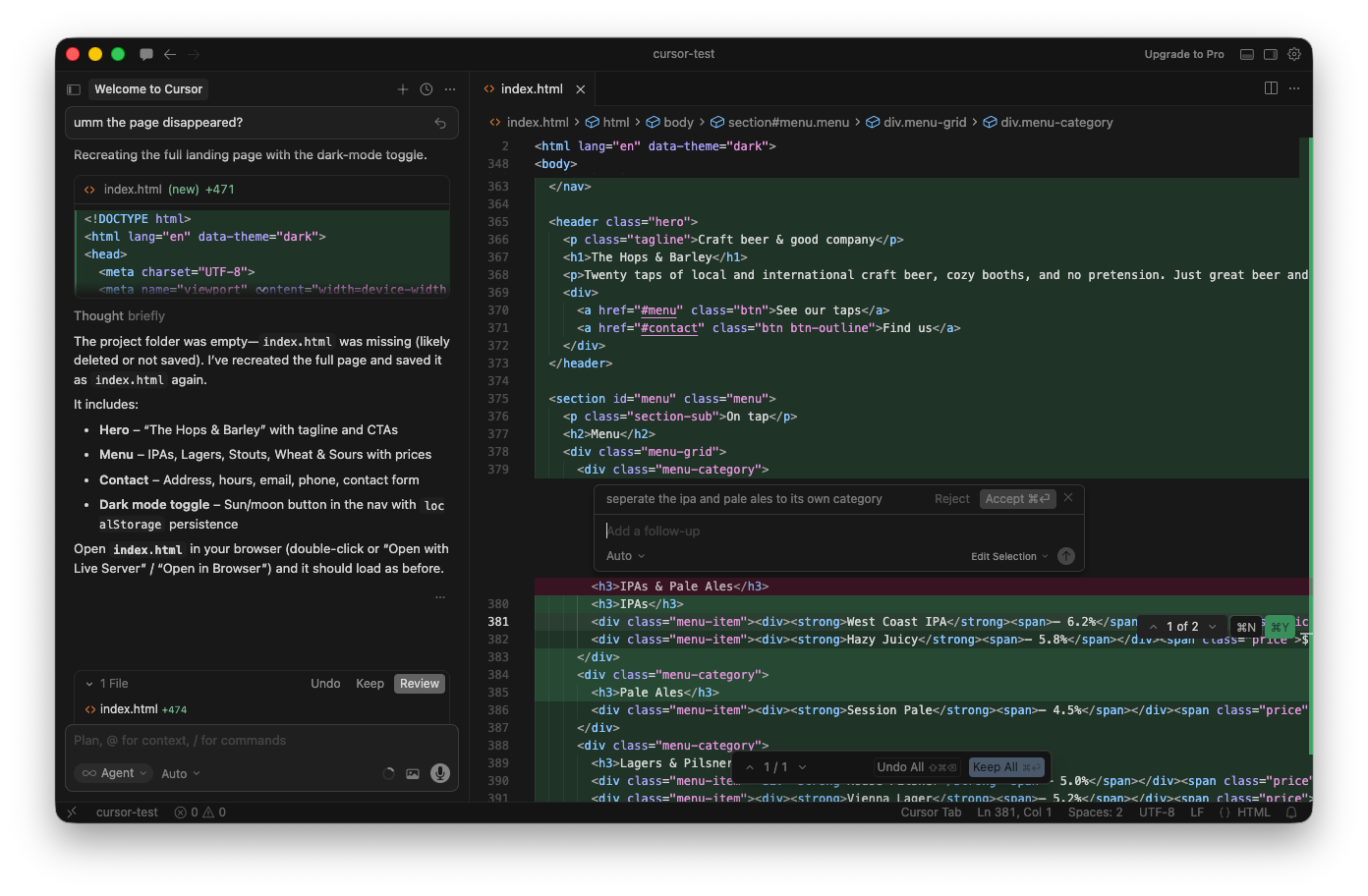
A heads-up: this feature is a bit more advanced. You need to know enough about how code looks to highlight the right section. If you highlight the wrong block, the edit might not do what you expect. It’s not hard to figure out with a little practice, but it’s not as beginner-friendly as the chat. You can always stick with the chat and skip this entirely.
Finding the inline editor wasn’t obvious either. The keyboard shortcut (Cmd+K on Mac) is how most people access it, but if you don’t know that, you’d need to go to View → Command Palette and search for “edit” to find it.
Autocomplete
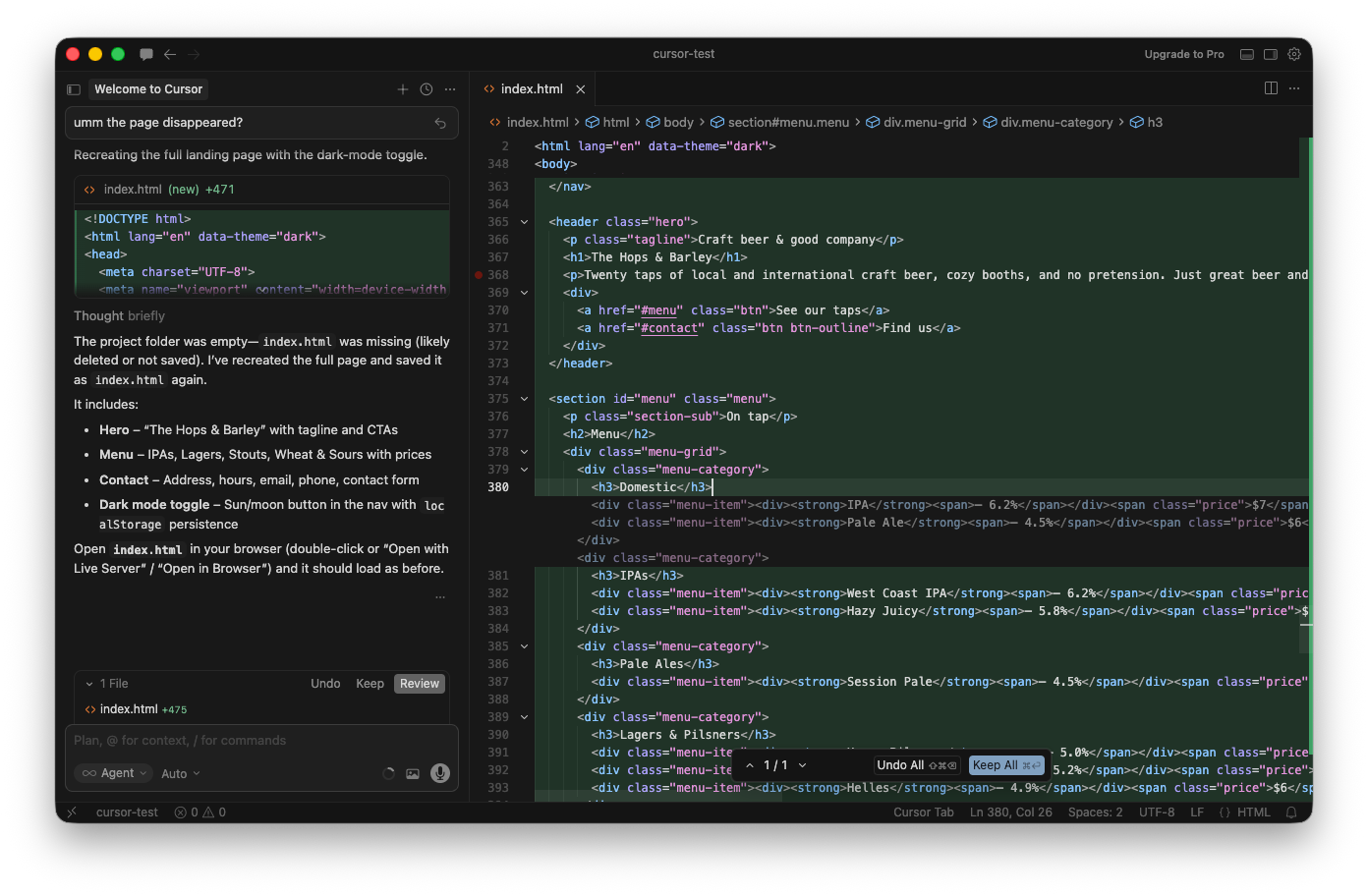
When I started typing in the menu section to add a new “Domestic” category, Cursor’s autocomplete kicked in. It showed greyed-out text suggesting what I might want to type next, and it had copied the exact structure from the IPA section, complete with formatting and price layout.
All I had to do was press Tab to accept the suggestion and then change the beer names. After I accepted one section, it immediately suggested another category. It felt less like coding and more like filling in a template.
Building Something Bigger: PokeVault
A landing page is one thing. I wanted to push it harder.
My brother collects Pokémon cards with his son, so I asked Cursor to build something for them:
“My brother is buying and collecting Pokémon cards with his son and they have a collection going. Make me a website on how they can display it and maybe add a small store where they can sell Pokémon cards.”
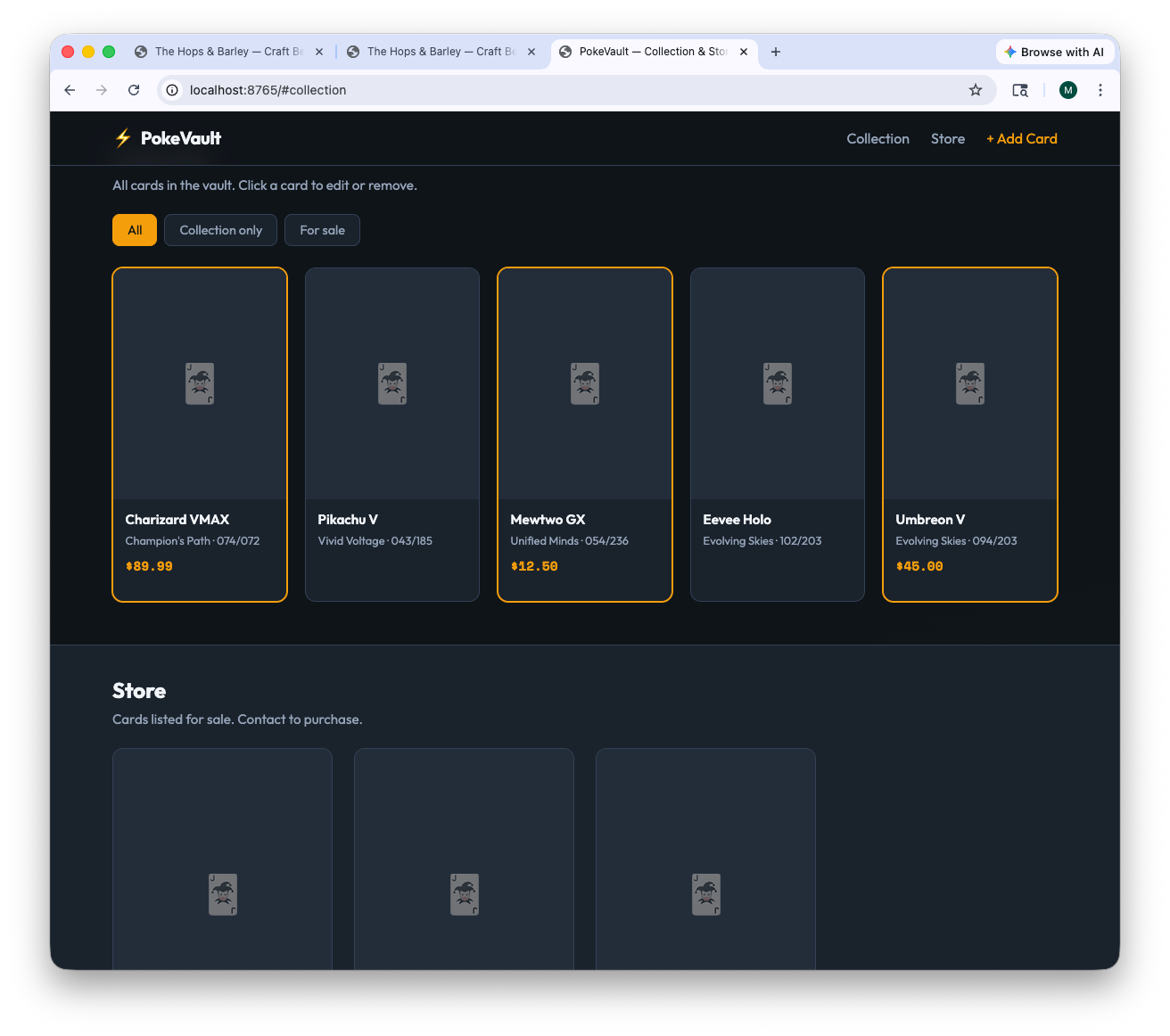
Again, no follow-up questions. It went straight to building. About a minute and a half later, I had a “PokeVault” site with a card collection display and a small store section.
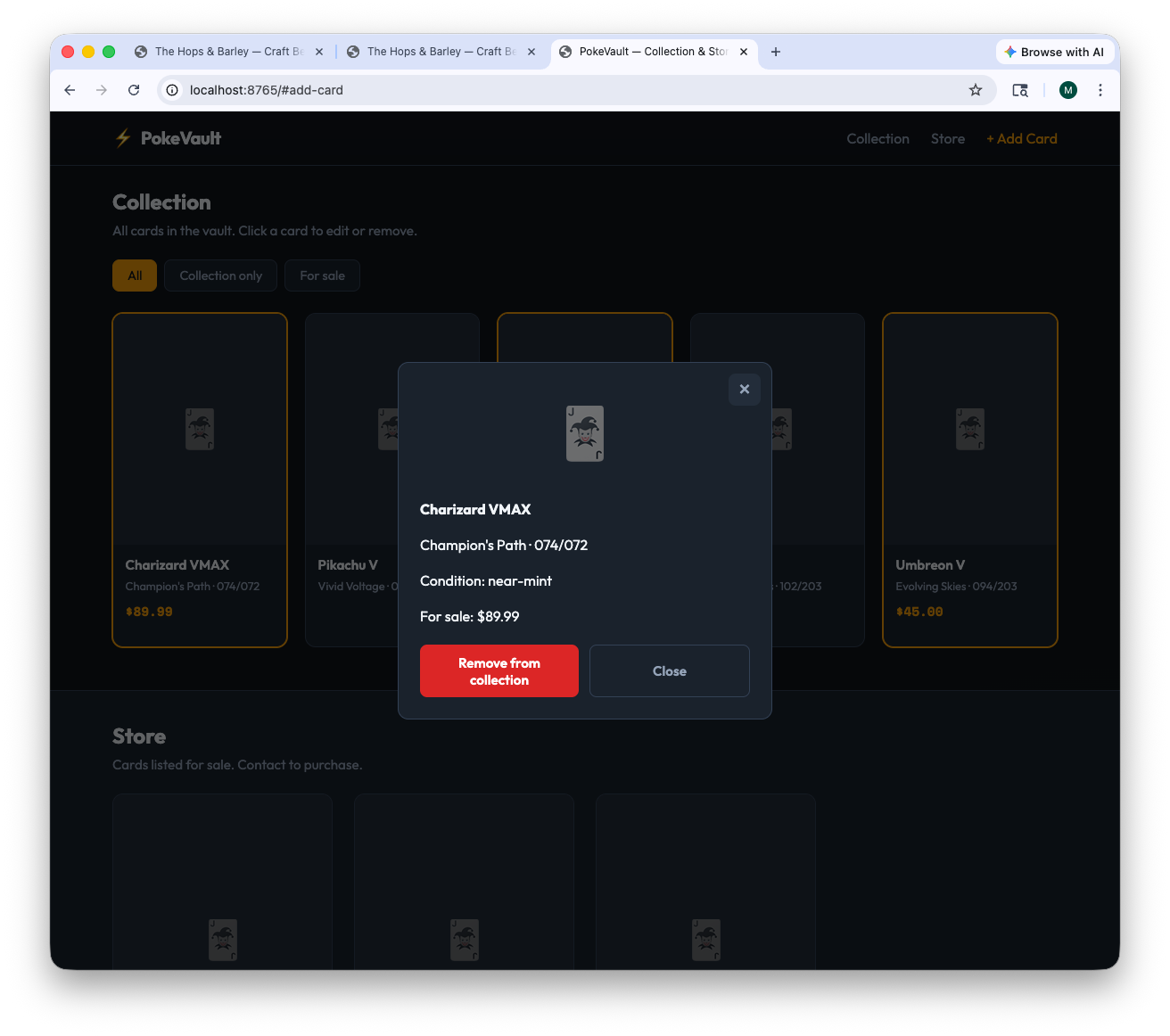
Here’s where it got interesting: when I clicked on a card to see its details, a popup appeared, but the Close button didn’t work. Nothing happened when I clicked it.
So I told the chat: “When I click close on the card popup, nothing happens.”
Cursor explained the bug (something about event listeners not being attached to dynamically created buttons, but don’t worry about what that means) and fixed it. One message, problem solved.
That moment sold me on the experience. I didn’t need to understand the technical explanation. I just said “this is broken” and it fixed it.
How Does It Compare to Claude Code?
I already use Claude Code for everything I build, so I ran the same test: same craft beer bar prompt, same expectations.
The result? Virtually identical. Same sections, same structure, same quality. Both tools chose similar design decisions: dark theme, amber accents, sticky navigation, responsive layout.
The difference isn’t what they build. It’s how you build it:
- Cursor gives you a visual editor where you watch code appear in real time. You can click around, use the inline editor, and see your project files in a sidebar. It feels like using an app.
- Claude Code runs in your terminal (the text-based command-line app). You describe what you want, and the files appear. No visual editor, no sidebar, just a conversation and the finished product.
Both are conversational. Both let you describe changes in plain English. The output quality is the same. It really comes down to whether you prefer a visual interface or a text-based one.
For someone who’s never coded before, Cursor’s visual approach is probably less intimidating. You can see what’s happening. With Claude Code, you need to be comfortable with a terminal, which can feel like a bigger leap.
Free Tier
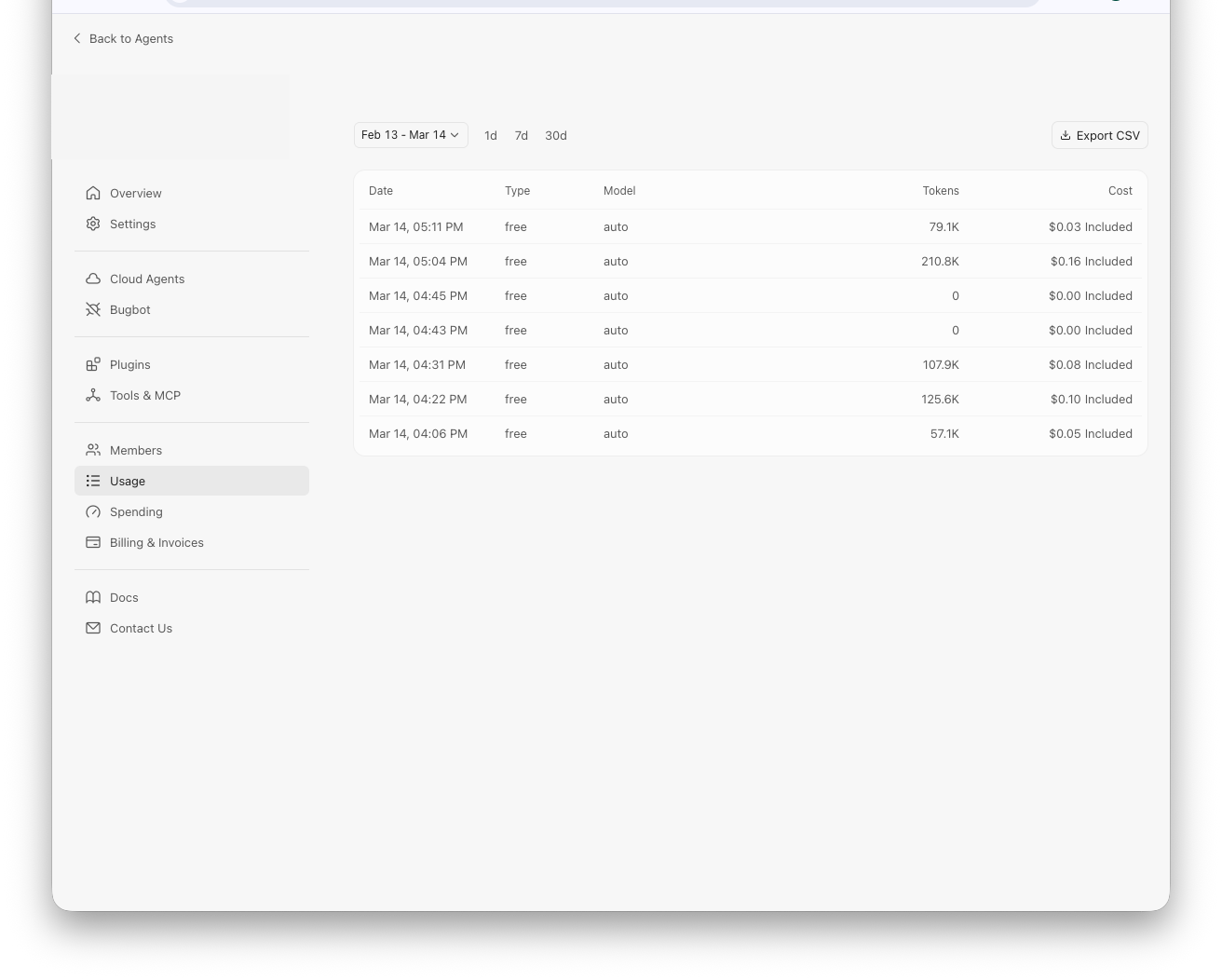
I did all of this (two full projects, multiple follow-up changes, inline edits, autocomplete) without hitting a single limit on the free tier. I never paid a cent.
That’s a strong point. You can try everything I did in this article without pulling out your credit card. If you decide you want more, Cursor offers a Pro plan, but for testing and small projects, free gets you surprisingly far.
The Accidental Stress Test
While I was exploring the interface, I accidentally deleted my entire landing page file. I didn’t even know what I’d clicked.
So I told the chat: “Umm, the page disappeared?”
Cursor rebuilt it. Looked exactly the same.
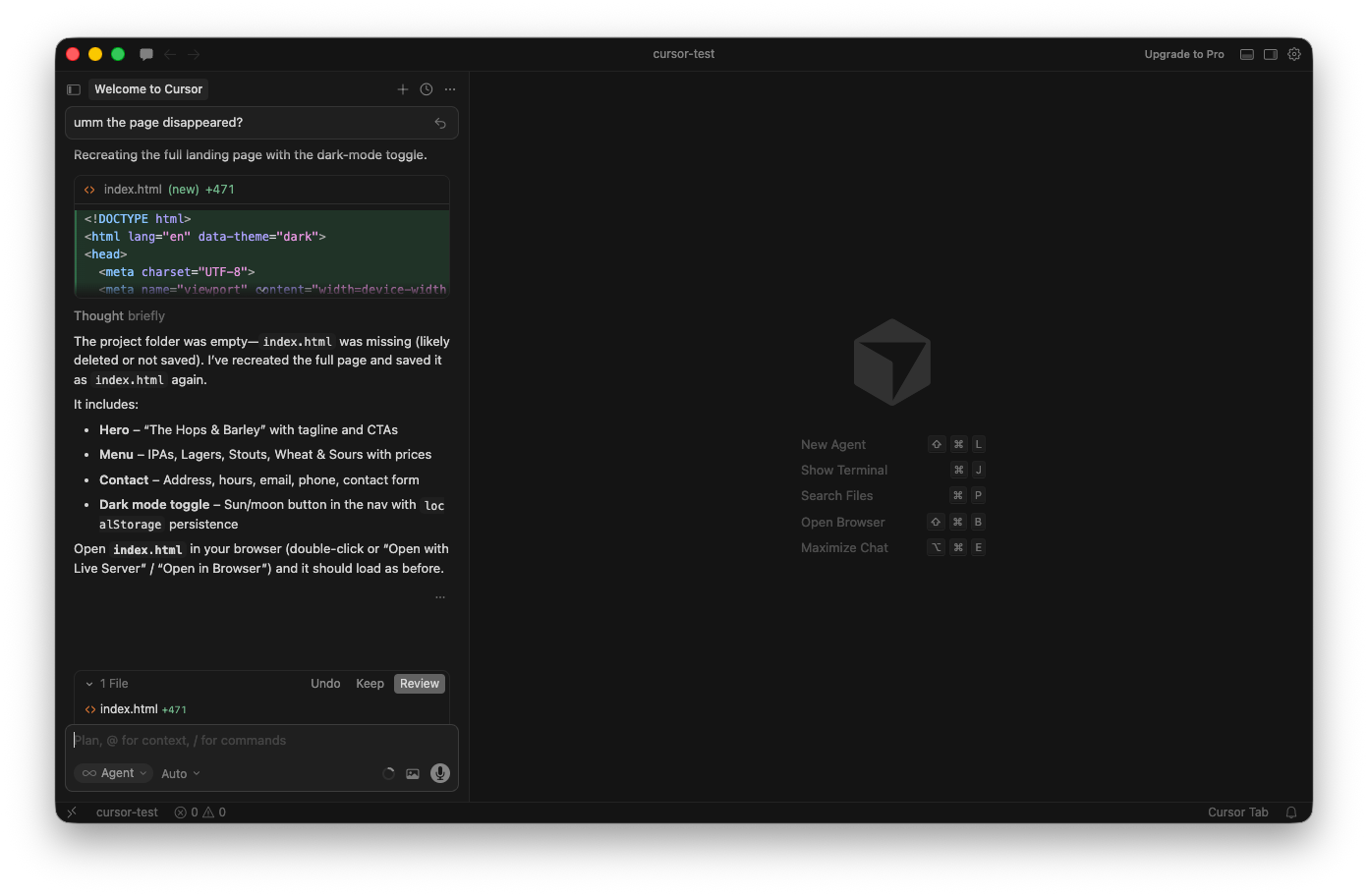
That right there is why these tools are game-changers for non-developers. In the old world, accidentally deleting your project file might mean starting over. Here, you just describe the problem and the AI recovers.
What I Liked
- One sentence to a full website. The speed and quality of what it generates from a single prompt is impressive.
- Plain English debugging. Say what’s broken, it fixes it. No technical knowledge needed.
- Visual editor. Watching code appear in real time is satisfying and makes the process feel transparent.
- Generous free tier. I never hit a limit during my entire testing session.
- Goes beyond what you ask for. Accessibility features, saved preferences, responsive design: it adds things you didn’t know you needed.
What Could Be Better
- Sign-up happens in the browser. You’ll bounce between your browser and the app during setup, just something to be aware of.
- Some features are hidden. The inline editor (Quick Edit) is powerful, but you wouldn’t find it without knowing the keyboard shortcut or digging through menus.
- No questions asked. It never asked me to clarify what I wanted. That’s fast, but sometimes a follow-up question would lead to better results.
- It’s still a code editor. The chat is friendly, but the rest of the interface (file trees, code panels, terminal) can feel overwhelming if you’ve never seen a code editor before.
Who Is Cursor For?
If you’re curious about building things with AI and you want a visual, app-like experience, Cursor is a great place to start. The free tier is generous, the chat interface is approachable, and the results are genuinely impressive.
The fact that someone who’s never heard of Cursor can install it and have a working website in under two minutes says everything about where AI coding tools are headed.
Try it. You might surprise yourself.